


HOW TO APPLY
This guide outlines the application process for obtaining operational permits for businesses.
If you are applying for Special Events, Pyrotechnics, or Mobile Food Units, please select the correct permit type (Step 5).
Step 1
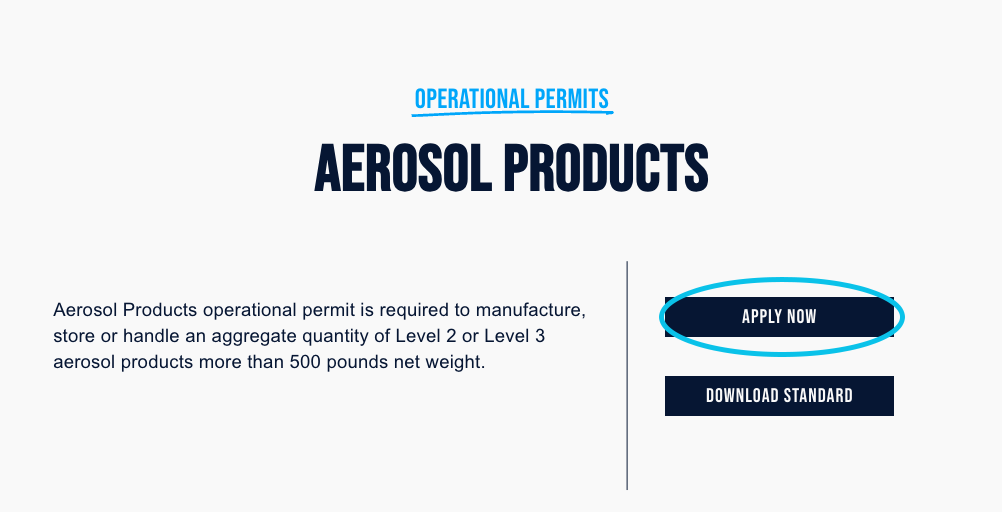
Click "Apply Now" Button
Each Operational Permit listed has an "Apply Online" button on its page. When you click this button, the Operational Permit Request Dashboard will open in a new page/tab. ( Example packets are provided for the following permits: Places of Assembly, Hazardous Materials, and High Pile Storage.)
Step 2
Start New Permit Request
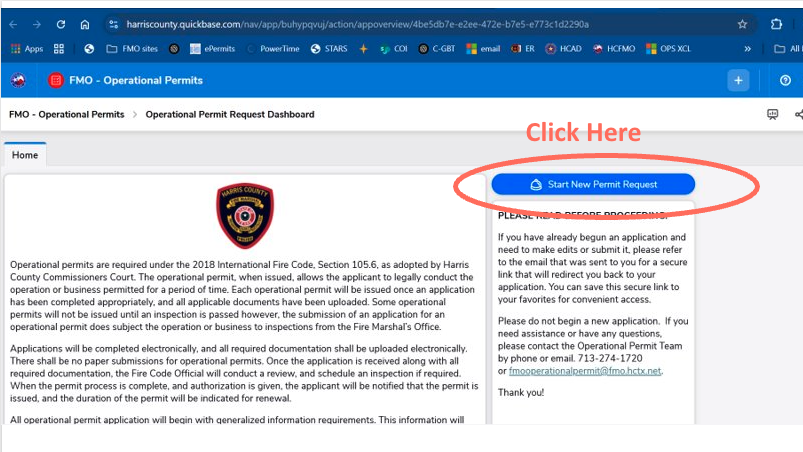
On the right side of the Operational Permit Request Dashboard, click the "Start New Operational Permit" button to start your application.
Step 3
Application - Page 1
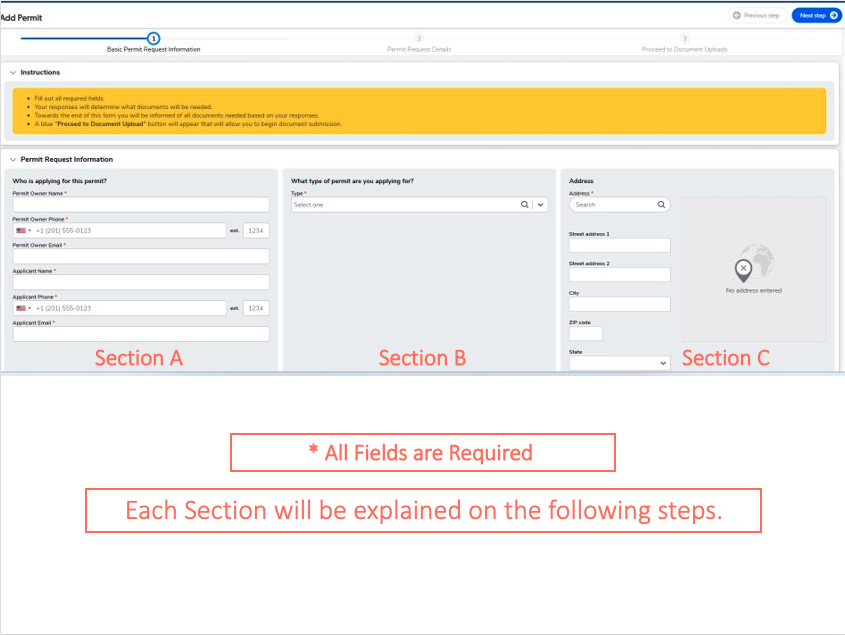
The first page of the application has three sections. You must fill out all the fields in each section. The following steps will explain each section in detail.
Step 4
Application - Page 1 | Section A
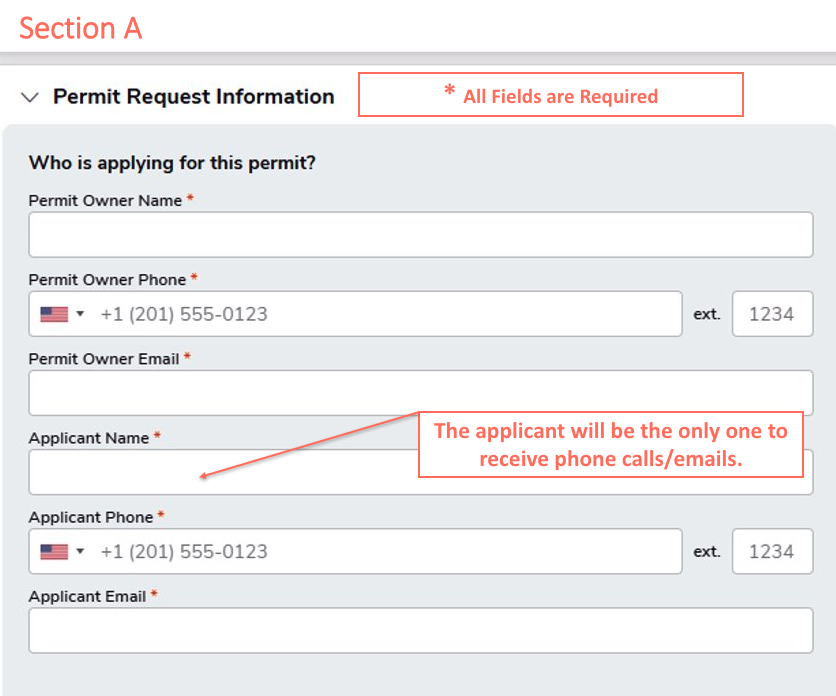
You must complete all fields. Enter the details of the individual responsible for following up on the operational permit in the "Applicant Name," "Applicant Phone," and "Applicant Email" fields. This person will be the only recipient of all phone calls and emails regarding the permit.
Step 5
Application - Page 1 | Section B
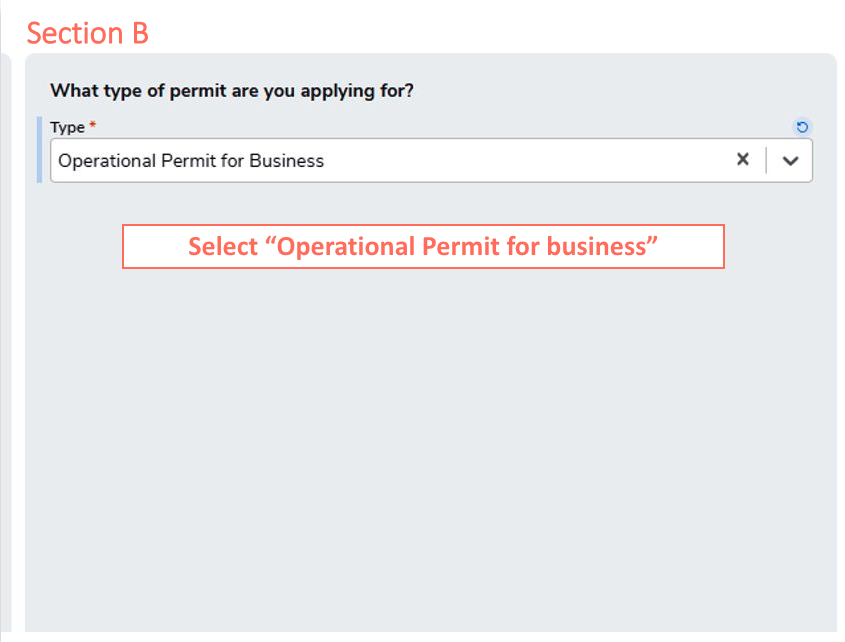
Select the type of Operational Permit for your business from the dropdown menu. If you are applying for Special Events, Pyrotechnics, or Mobile Food Units, please select the correct permit type.
Step 6
Application - Page 1 | Section C
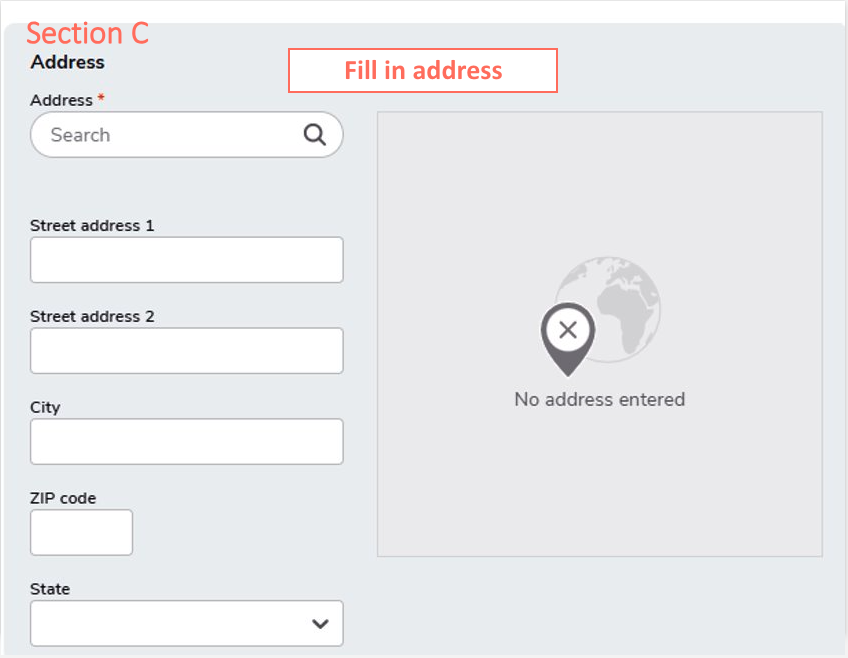
Complete the business address details.
Step 7
Application - Page 1 Completed
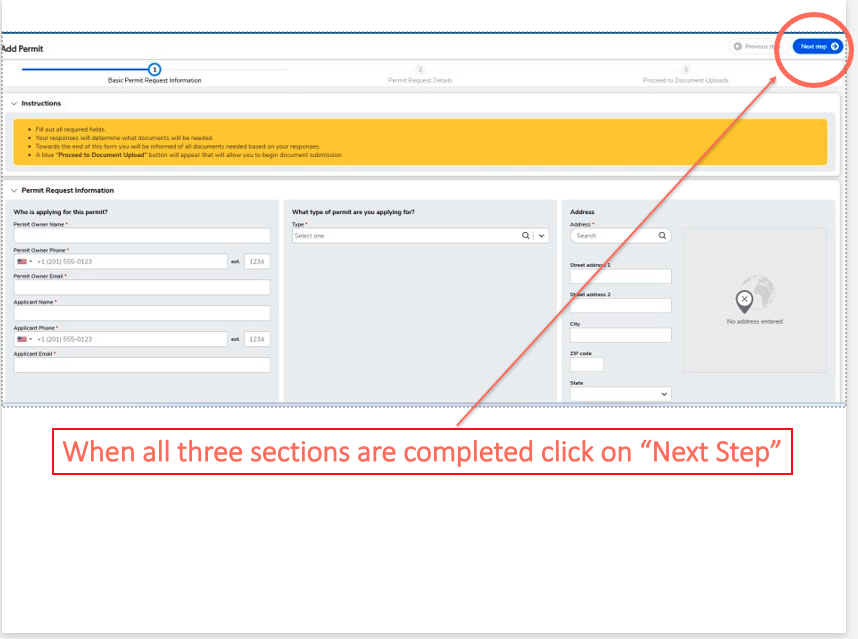
Select the type of Operational Permit for your business from the dropdown menu. If you are applying for Special Events, Pyrotechnics, or Mobile Food Units, please select the correct permit type.
Step 8
Application - Page 2
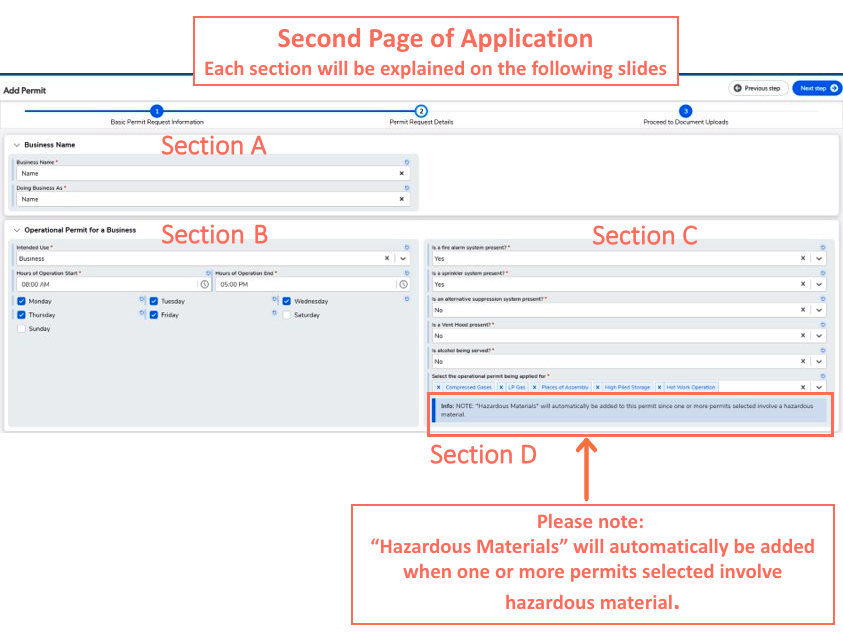
The second page of the application has four sections. The following steps will explain each section in detail.
Step 9
Application - Page 2 | Section A & B
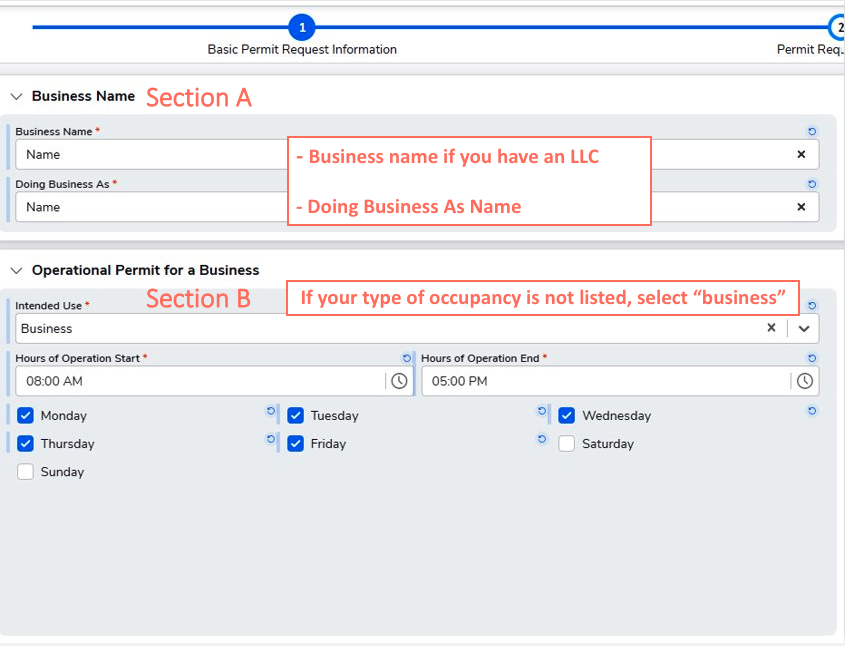
Fill out Business details. Note: if your business type is not in the Intended dropdown , select "business".
Step 10
Application - Page 2 | Section C
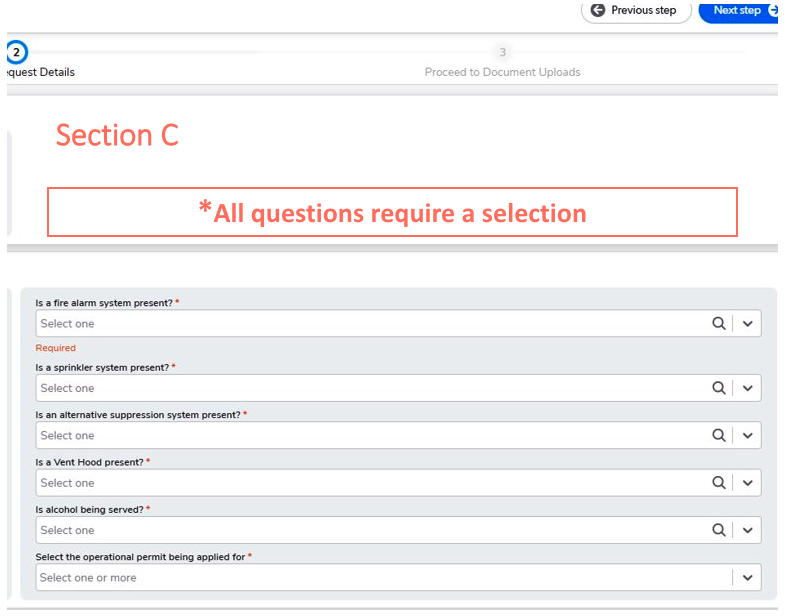
You must select an answer for all the fields in this section.
Step 11
Application - Page 2 | Section D
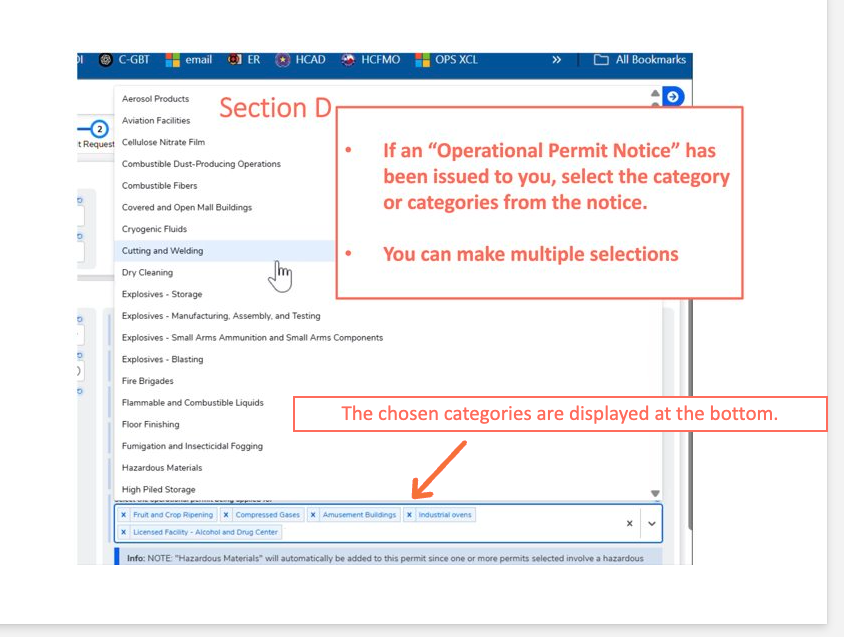
If you have received an "Operational Permit Notice," please carefully review the document for the specific category or multiple categories listed. From the dropdown menu, select the appropriate category or categories mentioned in your notice. Once you make your selection, a detailed list will be displayed at the bottom for your review. Please double-check your choices before finalizing. You can edit your selections if necessary, ensuring that all information is accurate.
Step 12
Application - Page 2 Completed
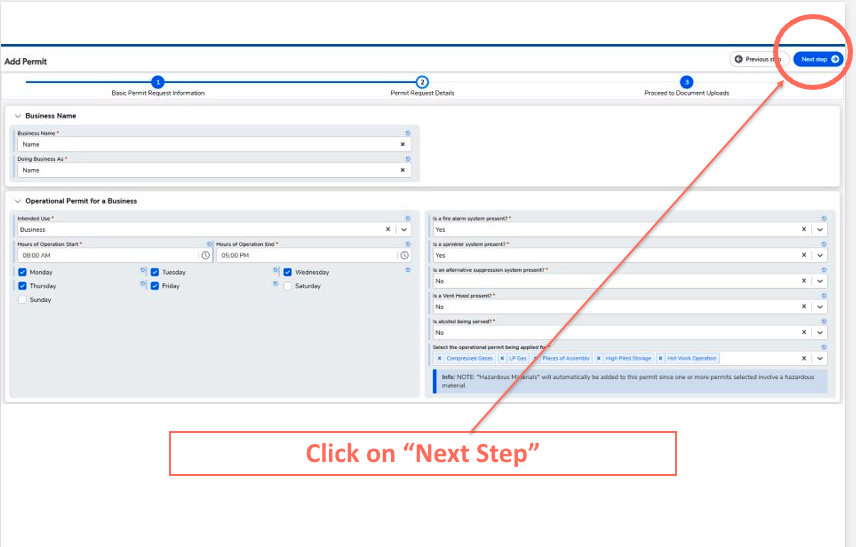
Once all fields are filled out, click the "Next Step" button located at the top right.
Step 13
Application - Page 3
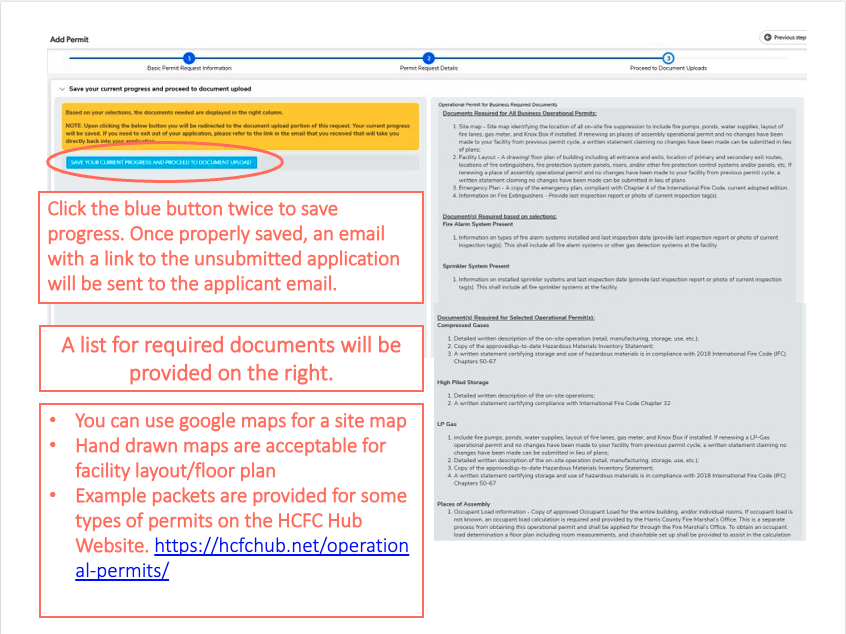
On the third page of the application, make sure to click the blue button twice to save your progress. Once saved, you will receive an email at the applicant's email address containing a link to access the unsubmitted application. Additionally, a list of required documents will be displayed on the right side of the page for your reference. Please note the following: - You can use Google Maps for the site map. - Hand-drawn maps are acceptable for the facility layout or floor plan.
Step 14
Application | Required Documents
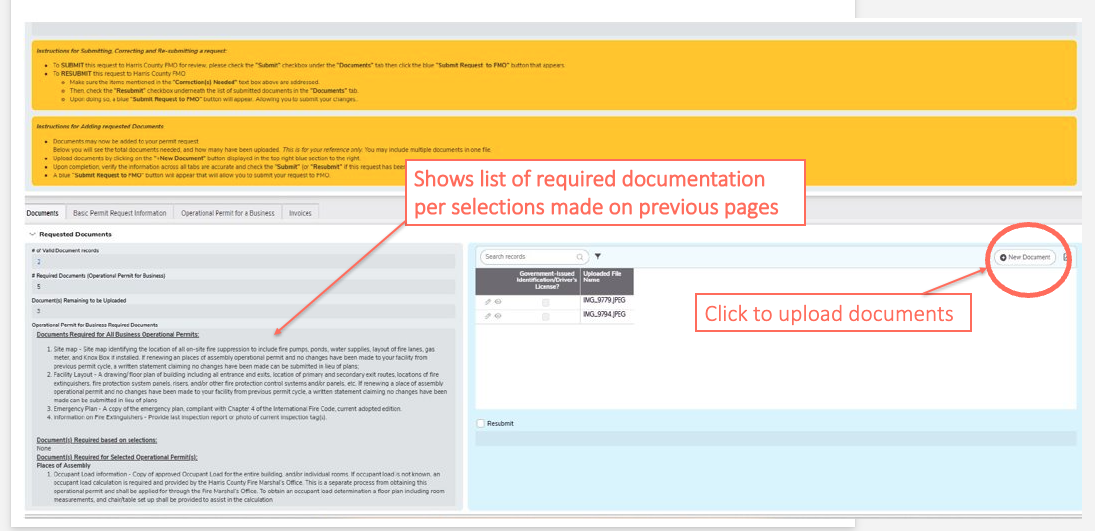
On the left side of the screen, you will find a list of required documents necessary for your submission. To upload these documents, simply click the "New Document" button located in the top right corner of the page.
Step 15
Application | Upload Required Documents
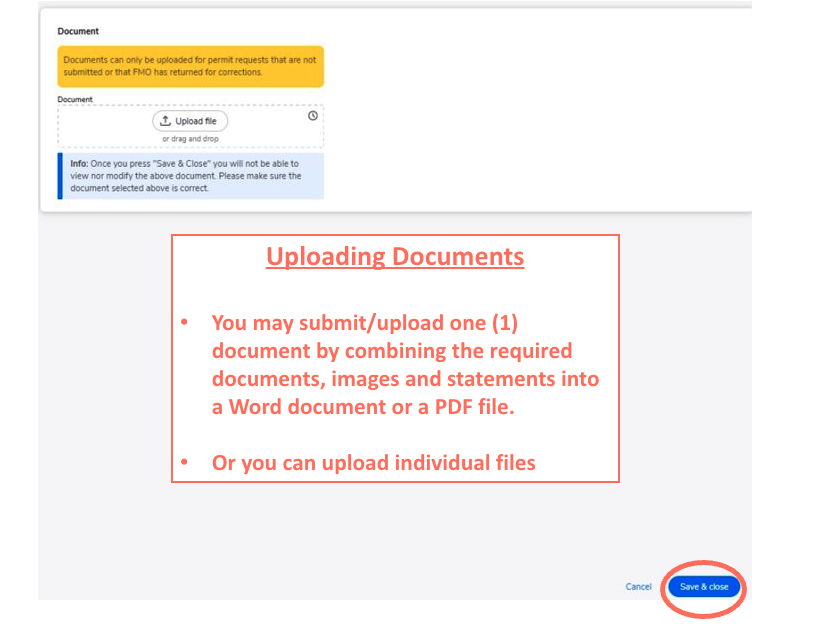
When you are ready to submit the required documents, you have two options for uploading: 1. You can combine all of your files into a single Word document or PDF file. 2. Or, you can upload each document individually. Regardless of the method you choose, please carefully follow the prompts provided on the upload page. Ensure that all required documents are submitted to avoid delays in processing your application. Double-check that each file is complete and meets the specified format requirements..
Step 16
Application | Submit
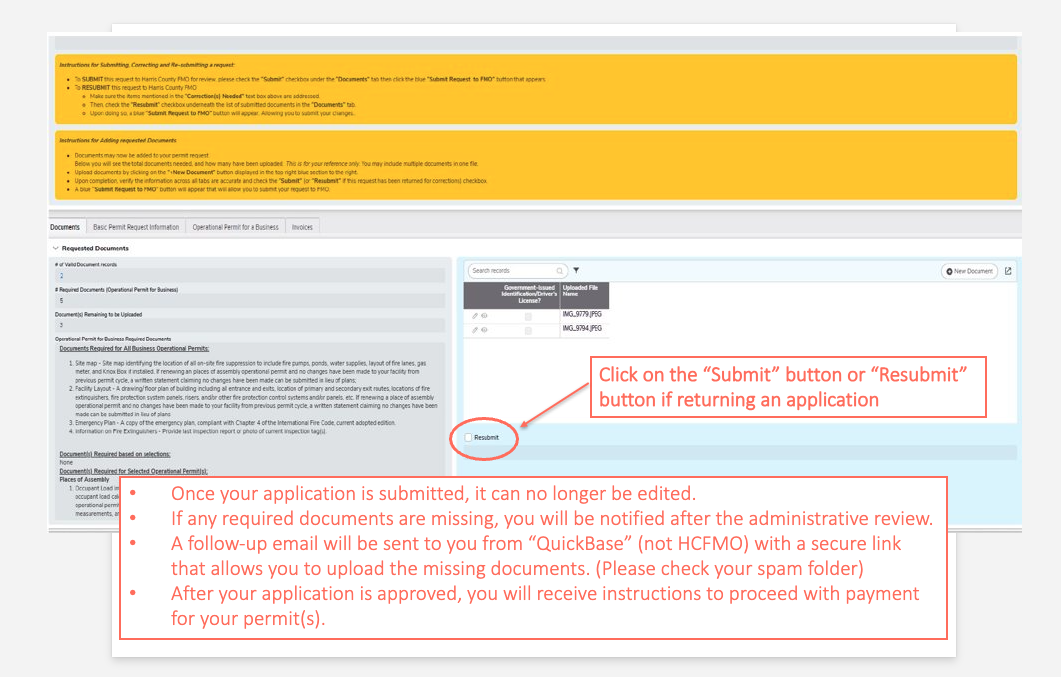
Please click on the "Submit" button to submit your application, or the "Resubmit" button if you are returning an application. Note: once you submit your application, you will not be able to edit or change any of the information you provided. If any required documents are missing from your submission, you will be notified after an administrative review of your application. In this case, a follow-up email will be sent to you from QuickBase (not from the Harris County Fire Marshal’s Office) containing a secure link that enables you to upload any missing documents directly. To ensure you do not miss the email, check your spam or junk folder if you do not see the email in your inbox. Once your application has been fully approved, you will receive instructions to proceed with payment for your permit(s)
Additional Information -1
Hazardous Materials Permit | A
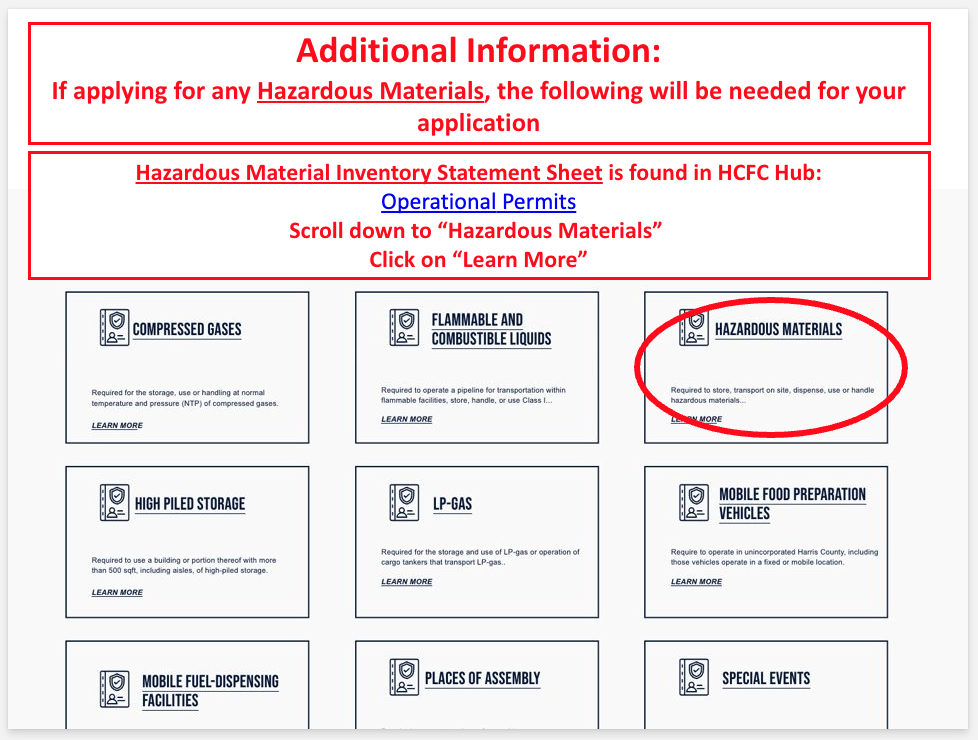
If you are applying for permits any hazardous materials, you must submit a Hazardous Materials Inventory Statement with your application. To access the required form and Example Pocket, visit: Operational Permits. Scroll down to the "Hazardous Materials" option and click on the "Learn More" link.
Hazardous Materials Permit | B
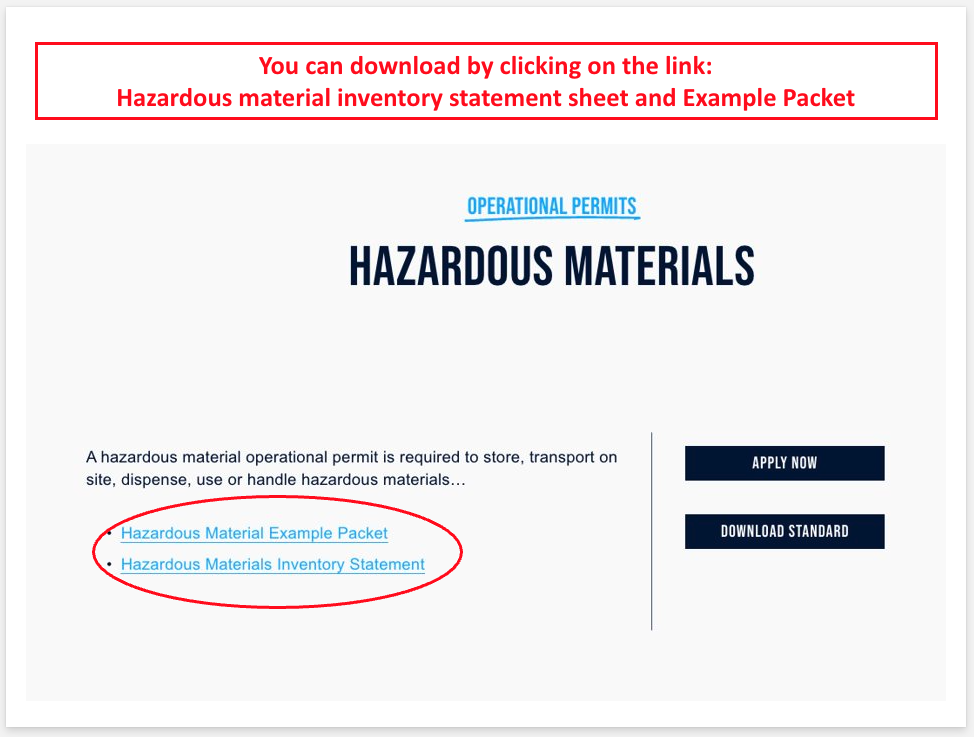
On the Hazardous Materials Page, you can download the "Inventory Statement" and "Example Pocket" for more details.
Hazardous Materials Permit | C
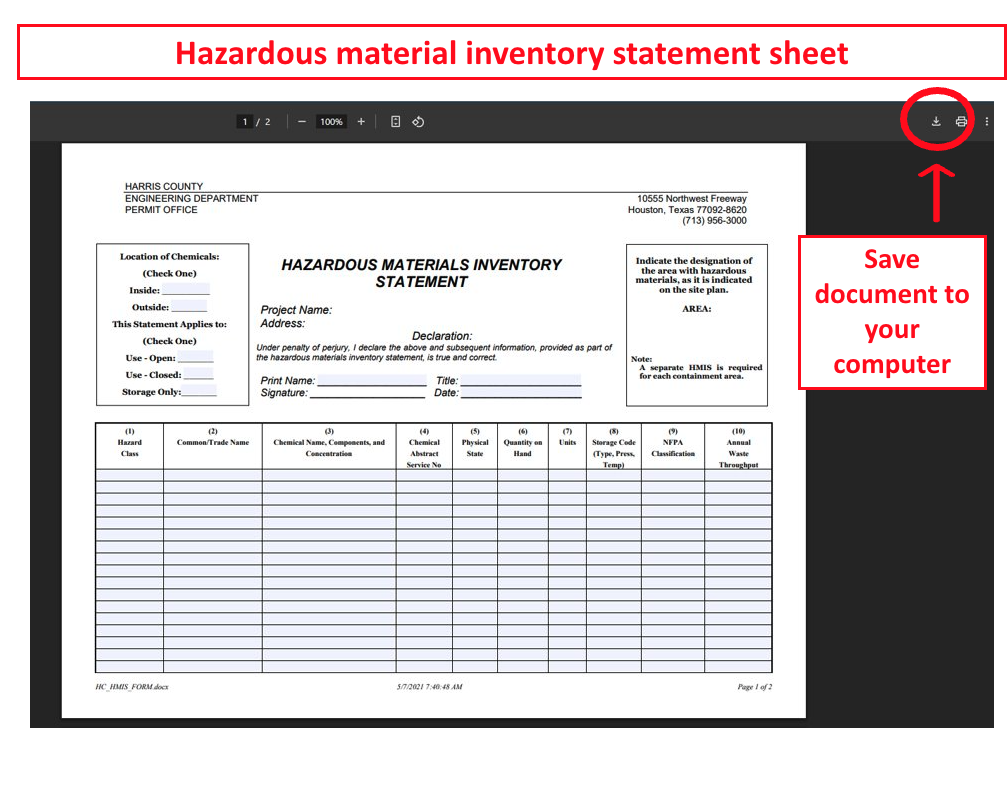
Click on the Download icon and save the "Inventory Statement" on your device.
Additional Information -2
Knox Box
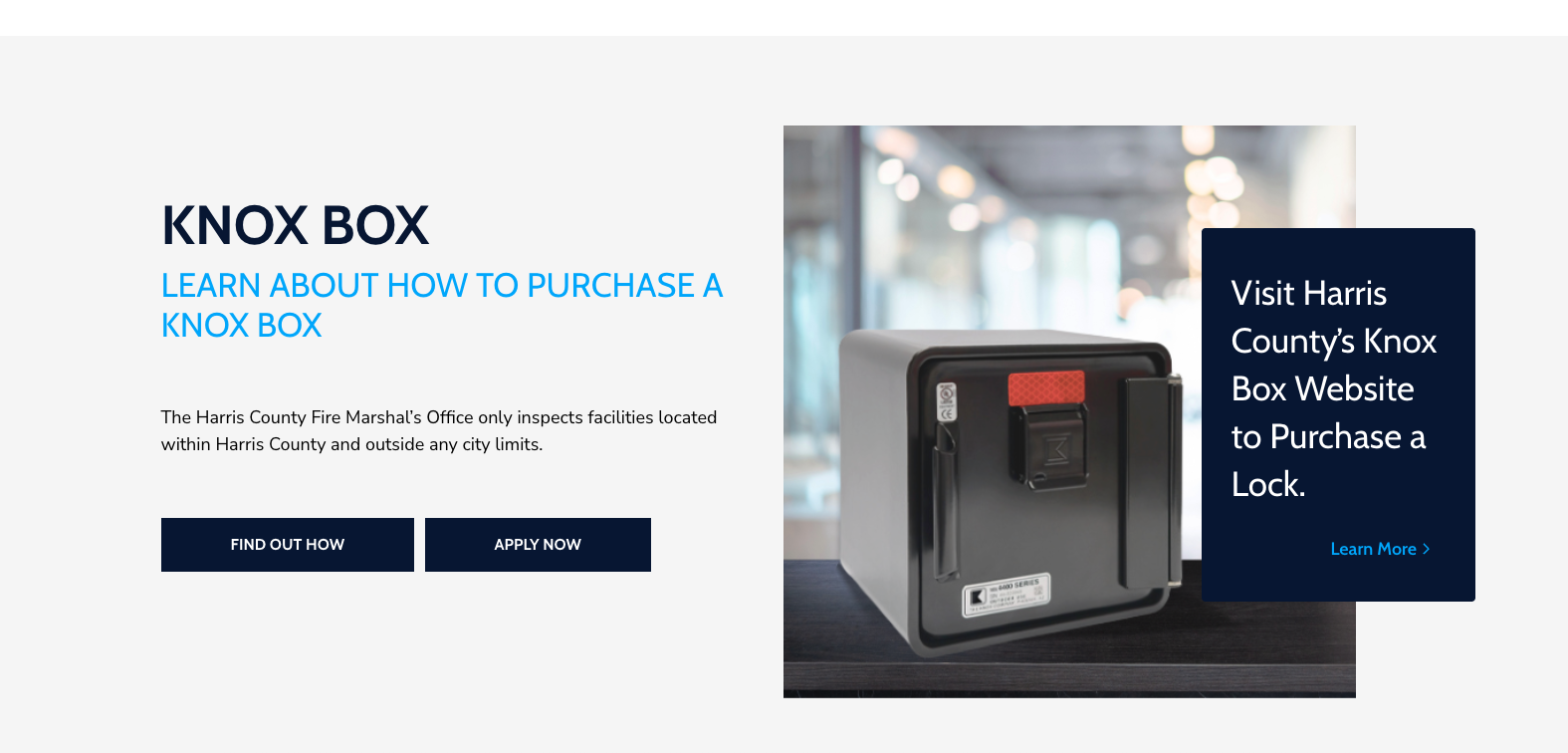
A Knox Box—also known as a Key Lock Box or Rapid Entry System—is a small, secure, wall-mounted box that you can install on the exterior of a building, typically near the front door. The Surface Mount boxes are designed for use with existing buildings. This box is meant to securely hold labeled keys, laminated passcodes, and/or access cards that allow firefighters and emergency responders to quickly enter the building in case of an emergency, minimizing damage. In Harris County, only the fire department and Fire Marshal's deputies possess the master key to open the Knox Box. During your inspection, the inspector will secure your spare keys inside the Knox Box. To learn more, please visit Inspection Requests and scroll-down the webpage.